Challenge 2 - Build the Claims Intake Agent
Expected Duration: 45 minutes
Overview
In this challenge, you will build the first production-facing agent in the workflow: the Claims Intake Agent.
The Claims Intake Agent must do two things in one flow:
- Process a claim image using the
mistral-document-ai-2512deployment. - Query the
crash-statementsAzure AI Search index to retrieve related statement evidence.
You will OCR the statement images, create a Foundry IQ knowledge base to explore retrieval in the portal, and create the agent using the Microsoft Foundry SDK. In the supplied implementation, the agent calls the crash-statements-kb knowledge base through its MCP endpoint, so its retrieval uses Foundry IQ's managed retrieval over the crash-statements index. At the end of this challenge, you will have a single JSON intake artifact that combines OCR output and retrieved crash statement context.
Foundry IQ: From search indexes to knowledge bases
Enterprise RAG solutions have traditionally been built on Azure AI Search, where developers were responsible for managing search indexes, document ingestion pipelines, chunking strategies, vector embeddings, indexers, and retrieval logic. While this approach provides maximum flexibility, it also introduces operational complexity and requires significant effort to scale across multiple data sources and AI applications.
Foundry IQ builds on the proven retrieval capabilities of Azure AI Search, introducing a higher-level abstraction through Knowledge Bases. Rather than connecting agents directly to individual search indexes, developers can aggregate multiple knowledge sources—including SharePoint, Azure Blob Storage, OneLake, web content, and other enterprise systems—into a single reusable knowledge base. Foundry IQ automatically handles indexing, synchronization, retrieval planning, source selection, grounding, and security enforcement, enabling teams to focus on delivering business value instead of managing retrieval infrastructure.
In essence, Azure AI Search remains the underlying retrieval engine, while Foundry IQ provides the context engineering layer that transforms enterprise knowledge into AI-ready context for agents and applications. This evolution significantly reduces the complexity of building grounded AI solutions while enabling knowledge to be reused consistently across multiple agents and use cases.
Prerequisites
- Complete the participant setup in the root README.
- Confirm that the MicroHack platform or your event coach supplied the Azure
resources and the values required by
.env.example. - Ensure your crash statements are indexed in Foundry IQ (for example, through your Azure AI Search index used by Foundry).
- Have your Github Codespaces up and running.
Tasks
Task 1: Populate the crash statements search index
The Claims Intake Agent retrieves through the crash-statements-kb knowledge base, which queries an index named crash-statements. labautomation/azuredeploy.json already creates this index for you as part of the lab deployment, so you only need to load it with crash statement content before running the agent.
The index schema
The crash-statements index is created with this schema:
{
  "name": "crash-statements",
  "fields": [
    { "name": "id", "type": "Edm.String", "key": true, "filterable": true },
    { "name": "content", "type": "Edm.String", "searchable": true },
    { "name": "source_file", "type": "Edm.String", "filterable": true },
    { "name": "claimant_name", "type": "Edm.String", "searchable": true, "filterable": true },
    { "name": "policy_number", "type": "Edm.String", "filterable": true }
  ]
}
Upload crash statement documents
Every claim's statement images under data/claims/ need to be OCR'd and uploaded as documents so the index contains evidence for all five crashes, not just one. Run docs/index_crash_statements.py to do this for the whole folder in one pass:
cd docs
python index_crash_statements.py
The script walks every data/claims/crash{1-5}/raw/statements/*.jpeg file, runs Mistral Document AI OCR on each one, and uploads the result to the crash-statements index using the same @search.action upload shape shown below (one document per statement image, keyed by file name, for example crash1_front, crash1_back, crash2_front, and so on):
{
  "value": [
    {
      "@search.action": "mergeOrUpload",
      "id": "crash1_front",
      "content": "Claimant: John Peterson. Policy: C1A8-AU1D-001. Claim date: July 17, 2025. Vehicle: 2004 Honda Accord, VIN 1HGCM56404A123456, plate OH-GHR1984. Incident: On the morning of July 17, 2025, my vehicle was legally parked in a market parking space at 2325 Rain Street, Springfield...",
      "source_file": "crash1_front.jpeg",
      "claimant_name": "John Peterson",
      "policy_number": "C1A8-AU1D-001"
    }
  ]
}
Done. Indexed 10 statement documents.
Task 2: Understand Foundry IQ knowledge bases, then create one
A raw Azure AI Search index is just a searchable document store. Querying it well — writing filters, choosing a query type, ranking results — is work your application (or the agent) has to do itself every time. Foundry IQ takes a different approach: it puts a managed retrieval layer on top of one or more indexes, so the agent can ask a question in natural language and let Azure AI Search plan and execute the query for it. That managed layer is built from two objects:
- Knowledge source — a reusable reference to a data source. In this challenge its kind is
searchIndex, meaning it wraps thecrash-statementsindex you just populated: which fields are searchable, which are returned in results, and which semantic configuration to rank with. A knowledge source doesn't hold data itself; it just describes how to read from something that does. - Knowledge base — the managed retrieval object you can explore in the Azure AI Search portal. It references one or more knowledge sources and exposes a retrieval endpoint, including MCP. This challenge creates the knowledge base, which the supplied agent also calls through its MCP endpoint.
In short, the portal exercise follows index → knowledge source → knowledge base → portal retrieval. The supplied agent follows index → knowledge source → knowledge base → MCP tool → agent. The knowledge base does not replace the index; the supplied code attaches the crash-statements-kb knowledge base to the agent through its MCP connection.
Create the knowledge source and knowledge base
Run docs/create_knowledge_base.py:
cd docs
python create_knowledge_base.py
This script does three things against the crash-statements index:
- Makes fields retrievable and adds a semantic configuration. The index created in Task 1 only marks
idas retrievable — a knowledge source needs every field it returns (content,source_file,claimant_name,policy_number) to be retrievable, and agentic retrieval requires a semantic configuration to rank results. Both attributes can be changed on an existing index without rebuilding it. - Creates a
SearchIndexKnowledgeSourcenamedcrash-statements-ksthat wraps the index, using the new semantic configuration and the fields listed above. - Creates a
KnowledgeBasenamedcrash-statements-kbthat references that knowledge source, and prints its MCP endpoint:
https://<your-search-service>.search.windows.net/knowledgebases/crash-statements-kb/mcp?api-version=2026-08-01-preview
The helper uses FOUNDRY_IQ_MCP_API_VERSION when set; otherwise it uses
2026-08-01-preview for this lab's verified Search service. An API-version error
means the Search service does not support the configured version; check its supported
versions before overriding the variable.
Verify the knowledge base retrieves crash statements
- Sign in to the Azure portal using the account and tenant provided for the lab.
- In the portal search bar, search for Azure AI Search, and then open the
search service created for your lab. You can identify the correct service by
matching its name to the host in
AZURE_SEARCH_ENDPOINT. - In the search service menu, expand Agentic retrieval, and then select Knowledge bases. This area is the Azure AI Search surface that supports Foundry IQ knowledge bases.
- Confirm that
crash-statements-kbappears in the list, and then select it to open its chat playground. - Check that the knowledge base references the
crash-statements-ksknowledge source. If the knowledge source is missing, return to Agentic retrieval > Knowledge sources and confirm thatcrash-statements-ksexists and wraps thecrash-statementsindex. -
On this new pane:
-
Select a Reasoning Effort option under Retrieval.
- Select an Output Mode option under Output Configurations.
-
In the knowledge base chat box, enter a question that should match one of the indexed statements. For example:
Find the crash statement for policy COMM-AUTO-001. Summarize the claimant, vehicle, incident location, and whether the retrieved evidence is consistent. -
Submit the question and verify that the response cites content from
crash-statements-ks, including John Peterson and policyC1A8-AU1D-001. Selecting Minimal as Reasoning Effort and Extractive data as Output Mode, you will find an answer such as the following:
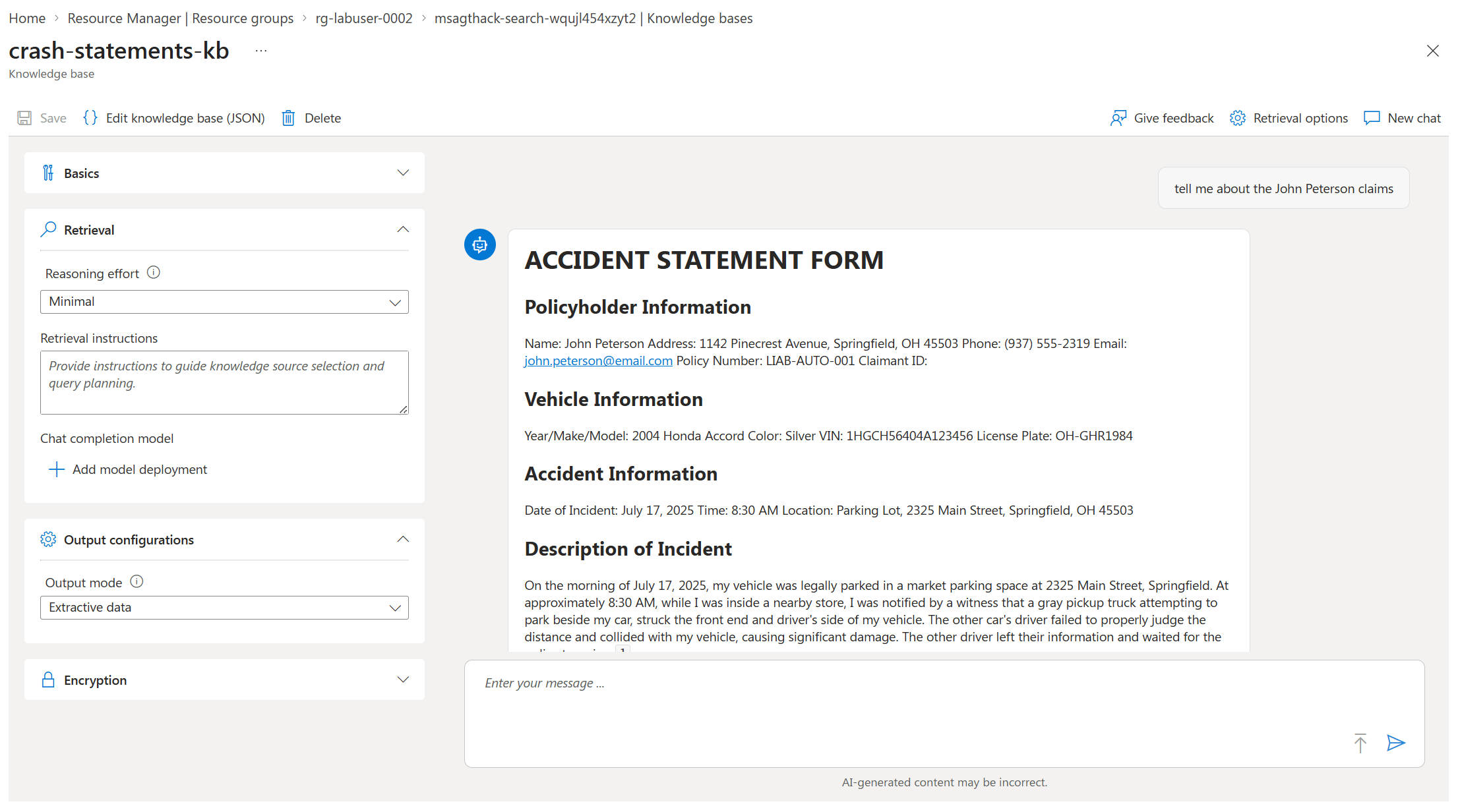
Before continuing, experiment with these two settings:
Reasoning Effort controls how much LLM processing Azure AI Search uses to plan retrieval. Minimal sends the query directly to the knowledge source for the lowest latency and cost. Low performs one LLM-planned retrieval pass. Medium can perform a deeper follow-up search when the first results are insufficient, which can improve completeness but increase latency and cost. Auto, when available, selects the depth for each request.
Extractive data returns the most relevant passages from the source documents instead of generating a synthesized natural-language answer. This mode helps you inspect the retrieved evidence directly and is required when Minimal reasoning effort is selected.
Run the same question with Minimal and Low reasoning effort. Where available, also try Medium or Auto. Compare the returned passages, citations, response time, and activity log. Then switch between Extractive data and Answer synthesis to observe the difference between raw grounding evidence and a generated, citation-backed answer.
- Select the debug or activity icon underneath the response. Confirm that the
activity log shows a retrieval operation against
crash-statements-ksand a nonzero result count. The log also shows the generated search query, elapsed time, and answer-synthesis activity.
If crash-statements-kb doesn't appear, refresh the page and verify that you
opened the search service whose endpoint was used when you ran
docs/create_knowledge_base.py. Also confirm
that the script completed without an error and printed the MCP endpoint for
crash-statements-kb.
For more information about this portal experience, see the Azure AI Search agentic retrieval quickstart.
Task 3: Understand how the agent is created with the Foundry SDK (no action required)
Before giving the agent any enterprise data, look at how it is created. docs/claims-intake-agent.py uses the azure-ai-projects SDK to register the agent as a first-class Foundry resource, instead of calling a chat completion API directly:
client = AIProjectClient(endpoint=project_endpoint, credential=DefaultAzureCredential(), allow_preview=True)

definition = PromptAgentDefinition(
    model=model_deployment,
    instructions=FOUNDRY_AGENT_INSTRUCTIONS,
)
client.agents.create_version(agent_name=FOUNDRY_AGENT_NAME, definition=definition)
Key points:
PromptAgentDefinitiondescribes the agent's model, instructions, and, in Task 4, the tools it uses for grounding.client.agents.create_version(...)registers the agent in your Foundry project so it can be reused across runs, versioned, and inspected in the Foundry portal._ensure_foundry_agent()in the script checksclient.agents.get(FOUNDRY_AGENT_NAME)first. It creates a new version only when the model, instructions, or MCP tool differ from the latest version, so re-running the script won't create duplicate agents.- The agent is invoked through
client.get_openai_client(agent_name=...), which returns an OpenAI-compatible client whoseresponses.create(...)call runs the named agent.
At this point the agent can already summarize OCR text using the model alone — it has no grounding in your crash statement evidence yet. That's the enterprise need you'll add next.
Task 4: Understand how the supplied agent calls the Foundry IQ knowledge base (no action required)
Foundry IQ grounds the supplied agent in the crash statements. Task 1 indexes the statements in the crash-statements Azure AI Search index. The crash-statements-kb knowledge base you created in Task 2 is Foundry IQ's managed retrieval layer over that index. The supplied agent calls this knowledge base through its MCP endpoint, so every retrieval uses Foundry IQ's managed retrieval, and the agent's answers are grounded in the same statements.
def _get_knowledge_connection_id(client: AIProjectClient, knowledge_base_name: str) -> str:
    """Find the RemoteTool connection that targets the Foundry IQ knowledge base."""
    expected_name = os.environ.get("FOUNDRY_IQ_CRASH_STATEMENTS_CONNECTION_NAME", "")
    connections = [
        connection
        for connection in client.connections.list()
        if getattr(connection.type, "value", connection.type) in {"RemoteTool", "RemoteTool_Preview"}
    ]
    if expected_name:
        connection = next(
            (item for item in connections if item.name == expected_name or item.id == expected_name),
            None,
        )
    else:
        connection = next(
            (item for item in connections if knowledge_base_name in (getattr(item, "target", "") or "")),
            None,
        )

    if connection is None:
        raise RuntimeError(
            f"No Foundry RemoteTool connection targets '{knowledge_base_name}'. "
            "Redeploy labautomation/azuredeploy.json, then rerun the intake agent."
        )
    return connection.id


def _build_crash_statements_knowledge_tool(client: AIProjectClient) -> MCPTool:
    """Build the MCP tool that retrieves indexed crash statements through Foundry IQ."""
    search_endpoint = (
        os.environ.get("FOUNDRY_IQ_SEARCH_ENDPOINT")
        or os.environ.get("SEARCH_SERVICE_ENDPOINT", "")
    ).rstrip("/")
    if not search_endpoint:
        raise RuntimeError("FOUNDRY_IQ_SEARCH_ENDPOINT is not set. Complete Task 1 first.")

    return MCPTool(
        server_label=CRASH_STATEMENTS_SERVER_LABEL,
        server_url=(
            f"{search_endpoint}/knowledgebases/{CRASH_STATEMENTS_KNOWLEDGE_BASE_NAME}"
            f"/mcp?api-version={MCP_API_VERSION}"
        ),
        require_approval="never",
        allowed_tools=["knowledge_base_retrieve"],
        project_connection_id=_get_knowledge_connection_id(client, CRASH_STATEMENTS_KNOWLEDGE_BASE_NAME),
    )
Key points:
_get_knowledge_connection_idfinds theRemoteToolconnection that targetscrash-statements-kb. The lab deployment provisions that connection.MCPToolpoints at the knowledge base's MCP endpoint, usingFOUNDRY_IQ_SEARCH_ENDPOINTandFOUNDRY_IQ_MCP_API_VERSION.allowed_tools=["knowledge_base_retrieve"]andrequire_approval="never"limit the agent to the one retrieval call the instructions ask for.- The agent's instructions ask it to call the
knowledge_base_retrievetool to ground its statement summary. Model tool selection remains part of the agent interaction. - When the agent's model, instructions, or MCP tool differ from the latest version,
_ensure_foundry_agent()creates a new version. Re-running the script with unchanged settings does not create one.
The same knowledge base from Task 2 is what the agent calls, so a matching statement in the portal retrieval confirms that the knowledge base is working.
Task 5: Run the Claims Intake Agent
Use an accident statement form image under data/claims/{claim-id}/raw/statements/, not the reference photos in data/claims/{claim-id}/raw/vehicle-damage/. The raw/vehicle-damage/*.jpg files are generic damage photos with no text, so OCR on them produces no usable content and the search tool returns zero matches. The raw/statements/*_front.jpeg and *_back.jpeg files contain the actual handwritten claim forms that match the indexed crash statement content.
cd docs
python claims-intake-agent.py ../data/claims/crash1/raw/statements/crash1_front.jpeg
Optional output path:
python claims-intake-agent.py ../data/claims/crash1/raw/statements/crash1_front.jpeg --output ../challenges/intake_result_crash1.json
Task 6: Test your Agent in the Portal
- On the Microsoft Foundry Portal, find the Build Section

- On Agents, select your previously created Claims Intake Agent.
-
In this section, you will see the agent you created. Review its main settings:
-
Model selects the deployed model that runs the agent.
- Instructions define the agent's role, behavior, and response rules.
- Tools connect capabilities such as Azure AI Search, MCP, or custom functions. This agent's MCP tool calls the
crash-statements-kbknowledge base, which queries thecrash-statementsindex. - Parameters tune response behavior, including creativity and reasoning effort when supported by the model.
- Versions preserve published configurations so changes can be tracked or rolled back.
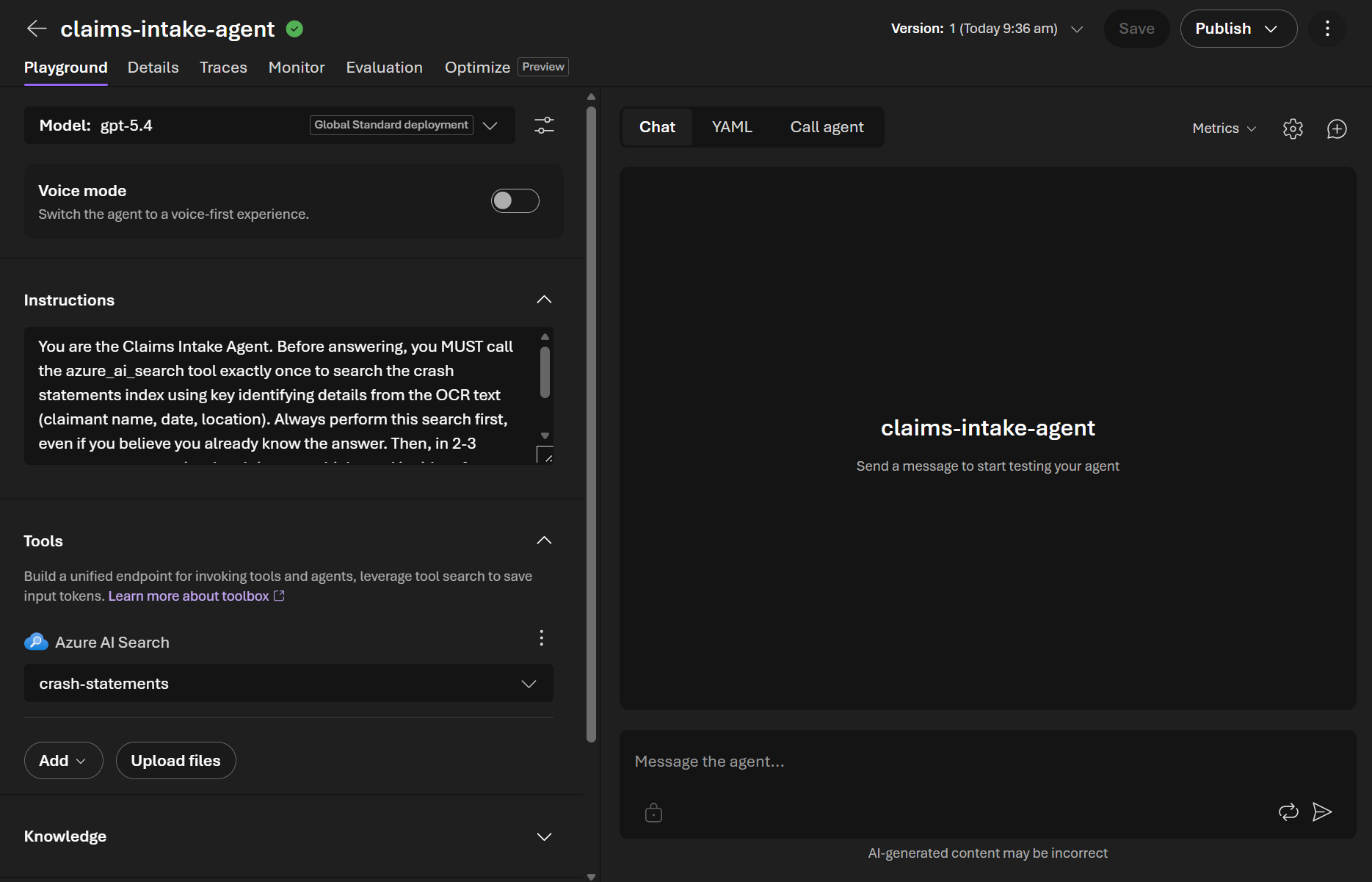 4. Test your Agent on the Portal
Find the crash statement for policy COMM-AUTO-001. Summarize the claimant,
vehicle, incident location, and whether the retrieved evidence is consistent.
Confirm that the response identifies John Peterson and is grounded in the indexed statement evidence. This portal playground test does not change the MCP knowledge-base tool described in Task 4.
Task 7: Optional, connect Foundry to the blob storage account
The lab deployment creates a Storage account with a claims-data container that can hold claim images and documents for direct processing from Foundry, instead of relying only on local files. If you want to validate the setup in the Foundry portal, connect this Storage account to your Foundry project so agents and tools in the portal can read from it.
-
Open the Microsoft Foundry portal
-
On the top bar, go to Manage >Project details > Connected resources.

- Select Add connection.
- In the agent playground, enter this prompt and select Send:
- Choose Azure Blob Storage as the connection type.
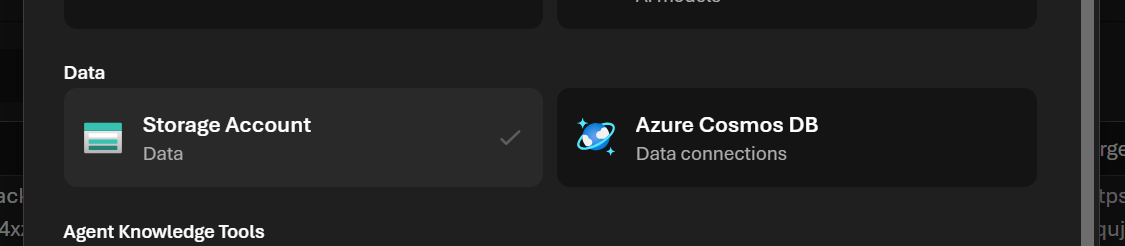
- Select the Storage account supplied with your lab.
- Set the authentication method to API key, then confirm the connection name (for example,
claims-data-storage). - Select Add connection to finish.
- Verify the connection appears under Connected resources with a status of Connected.
With this connection in place, Foundry can list and read blobs from the claims-data container directly, so you can point future tasks and agents at blob paths instead of copying files locally first. Challenge 3 builds on this same pattern — creating an agent with the SDK, then giving it an enterprise need — using your Storage account's policies container instead of Foundry IQ.
Validation checklist
- OCR call succeeds with
status: success. - The
claims-intake-agentagent appears under your Foundry project's agents (visible via the SDK or the Foundry portal). - At least one crash statement match is returned from the
crash-statements-kbknowledge base. - Output JSON is created and contains
ocr,foundry_iq, andagent_summarysections. - (Optional) The Storage account connection appears under Connected resources in the Foundry portal with a status of Connected.
Next step
Continue with Challenge 3 to ground coverage decisions in enterprise policy documents.