Challenge 1 - Prepare the Environment
🎯 Objective
Sign in with your assigned lab credentials, verify the pre-provisioned Azure resources, and start the GitHub Codespaces development environment used throughout the Claims Intelligence MicroHack.
🧭 Context and Background
The remaining challenges use a pre-provisioned Azure environment and a repository hosted on GitHub. You will work from a GitHub Codespace configured with the tools and dependencies required to build the claims intelligence solution.
Complete this setup with the credentials provided in your Hackbox. Use the assigned lab account for the Azure portal and the event console so that you have access to the correct Azure subscription and resource group. For the GitHub Codespace, use your own GitHub account.
🔑 Get your event access
Before you start the tasks, sign in to the event console at emea.microhack.cloud and find your Azure lab credentials. Your event lead provides a username and password for the console. Use them only during the event window your event lead set.
- Open emea.microhack.cloud.
- Sign in with your username and password.
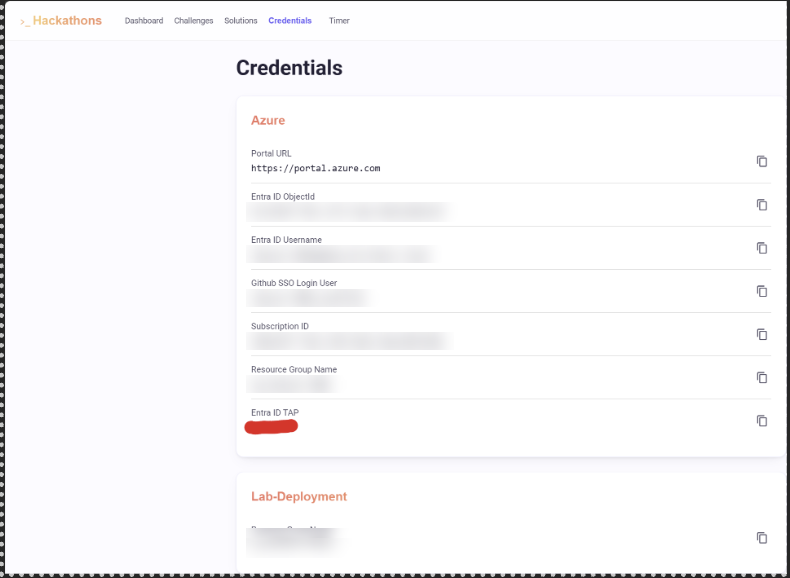
- On the home screen, open Credentials. You see only your own Azure lab credentials. Keep them ready for the tasks below.
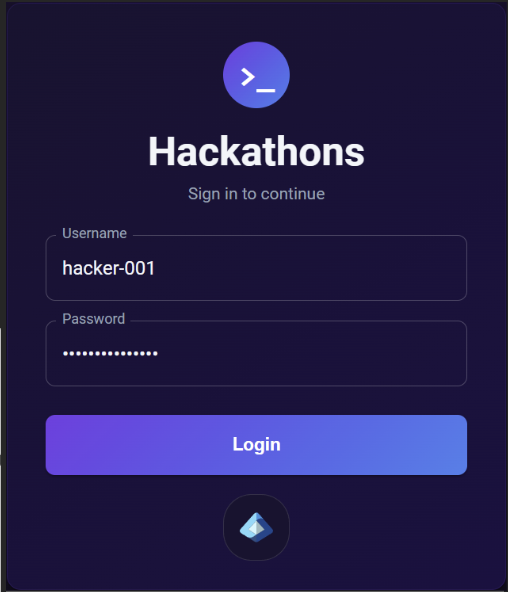
The sign-in screen from step 2:
The Credentials dashboard from step 4 lists your own Azure lab details. The Entra ID TAP is hidden in this example:
Important
The console sign-in is different from your Azure credentials. Use each one only where a step asks for it. Do not share them, paste them into chat or issues, or capture them in a screenshot.
✅ Tasks
1. Sign in to Azure
Open the Azure portal and sign in with the credentials provided in your Hackbox.
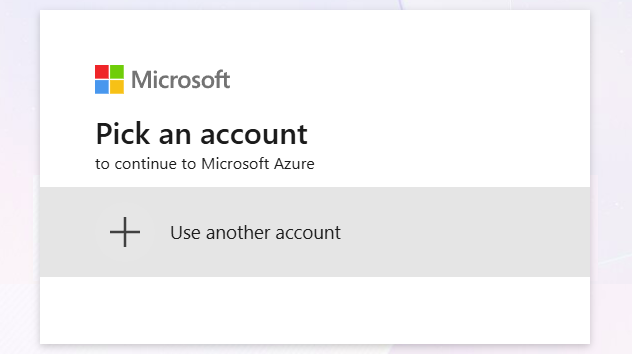
When prompted to choose an account, select Use another account and input the credentials provided. Do not use your personal or work account.
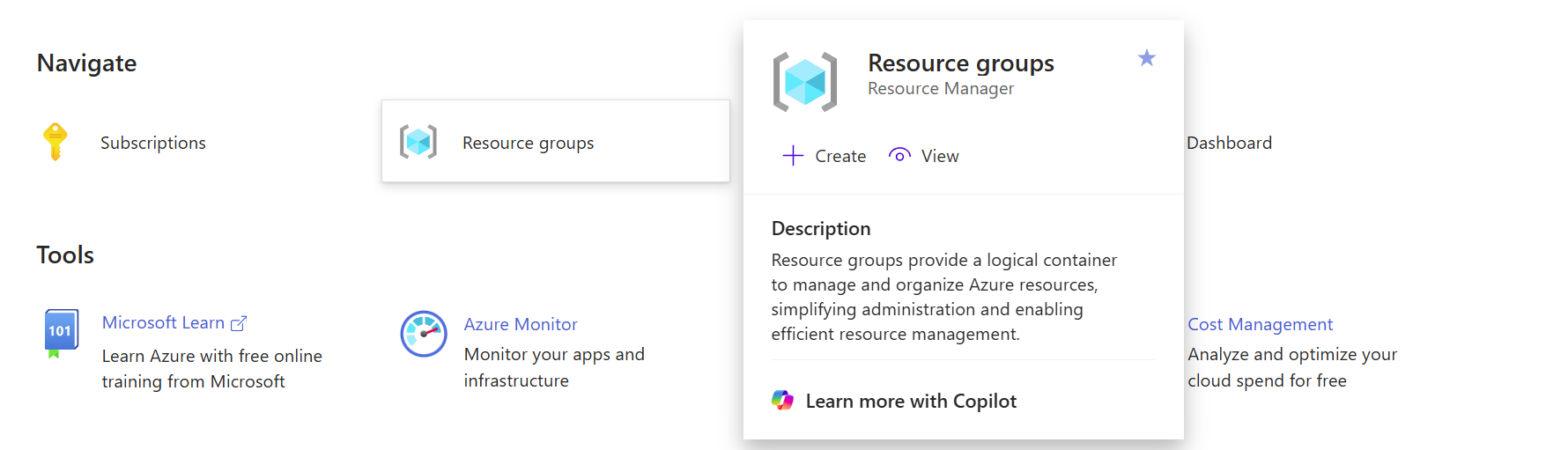
In the Azure portal, select Resource groups from the navigation menu.
Open the resource group assigned to you and confirm that its resources have been deployed successfully.
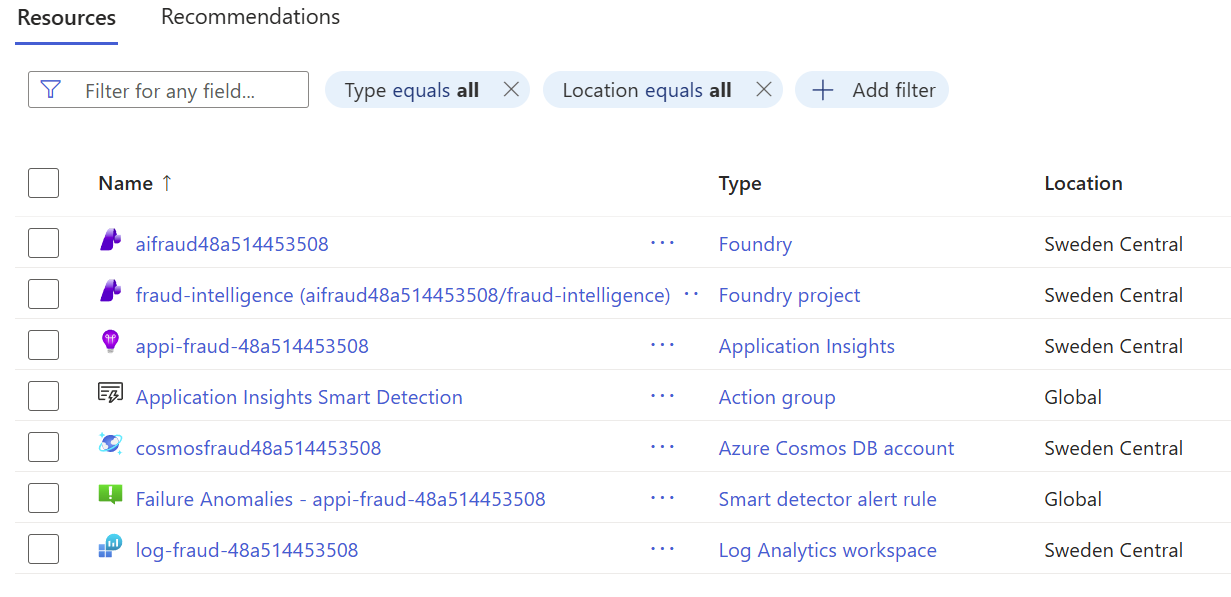
Verify that you can access the resources used in the later challenges, including the Microsoft Foundry project, the gpt-5.4 and mistral-document-ai-2512 model deployments, the Azure AI Search service, and the Storage account.
2. Get the repository
The workshop code is in the GitHub repository pankajagrawal16/claims-processing. Choose one option:
- Option A: GitHub Codespace (recommended). Create a Codespace from your own GitHub account. The repository's Claims Hack dev container sets up the tools for you. Follow step 3.
- Option B: Clone to your computer. Use your own editor and terminal. Follow 2B, then continue with step 3 from your terminal.
2B. Clone the repository
Use this option if you prefer a local environment. First install Git, the Azure CLI, Python 3.11, and uv. Then run these commands in a terminal, in the folder where you want the project:
git clone https://github.com/pankajagrawal16/claims-processing.git
cd claims-processing
These commands are the same in PowerShell. If GitHub asks you to sign in, use the lab account. Continue with step 3 from the cloned claims-processing folder.
3. Create the development environment
Option A (Codespace): open pankajagrawal16/claims-processing while signed in to your own GitHub account, select Code, then open the Codespaces tab. Select the ... menu and choose New with options.
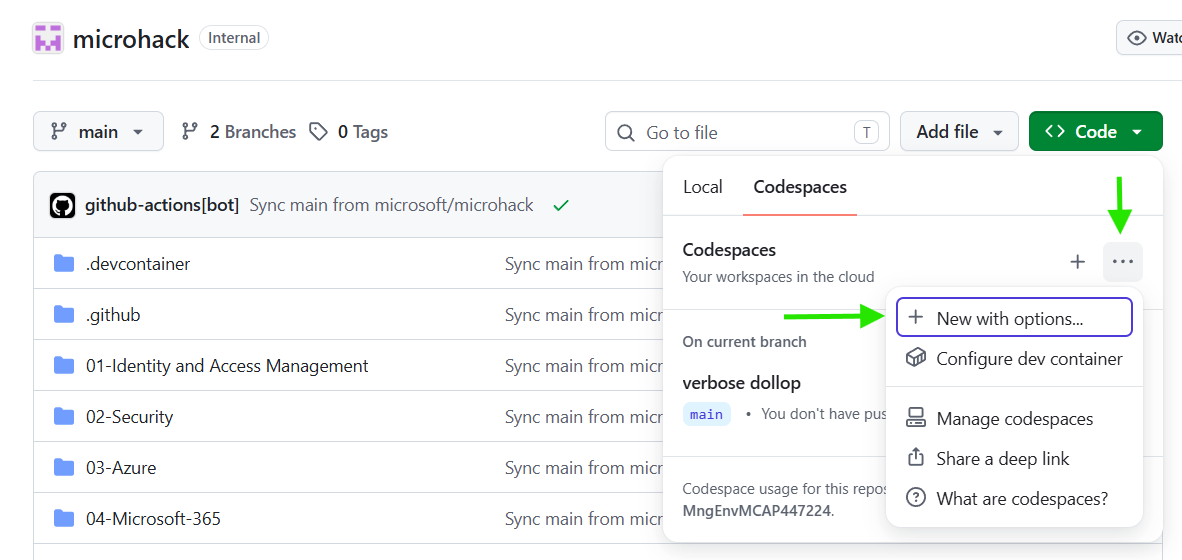
For Dev container configuration, select Claims Hack, then select Create codespace.
GitHub opens the Codespace in a new browser tab. Wait for the container setup to finish, then confirm that the repository files are visible in the Explorer and that the integrated terminal opens without errors.
Open a terminal in the Codespace (Terminal > New Terminal) and run the following command to verify that the required tools are installed:
az --version
Run the remaining commands from the root of the cloned repository (the folder
containing pyproject.toml and azure.yaml). If needed, open that folder in your
editor or terminal. Install the pinned project dependencies and activate the
environment:
uv sync --refresh --python 3.11 --default-index https://pypi.org/simple
source .venv/bin/activate
uv sync --refresh --python 3.11 --default-index https://pypi.org/simple
.\.venv\Scripts\Activate.ps1
Sign in to Azure from the Codespace terminal with the assigned lab account:
az login --use-device-code
From the same workshop folder, run the setup script with the resource group name provided in your Hackbox. Use the script for your shell:
bash labautomation/get-keys.sh --resource-group "<your-resource-group-name>"
This script needs Bash 4 or newer. macOS's built-in Bash 3.2 is too old; use the Codespace or a newer Bash.
.\labautomation\get-keys.ps1 -ResourceGroup "<your-resource-group-name>"
This runs on Windows PowerShell or PowerShell 7 with no WSL or Git Bash needed. Azure CLI must be installed.
The script locates the latest successful Claims MicroHack deployment and creates a
local .env file in the repository root. It retrieves the Foundry project endpoint,
Mistral Document AI key and endpoint, Azure AI Search key and endpoint, and Storage
connection string required by Challenges 2 through 6. The file is excluded from Git,
written with permissions 600, and its secret values are not displayed.
4. Verify the Blob Storage assets
Before continuing, confirm that the lab deployment uploaded the claim and policy files.
Find the Storage account name in the output from get-keys.sh, then run these commands
from the repository root:
STORAGE_ACCOUNT="<storage-account-name>"
STORAGE_CONNECTION_STRING="$(sed -n 's/^AZURE_STORAGE_CONNECTION_STRING=//p' .env)"

az storage blob list \
  --connection-string "$STORAGE_CONNECTION_STRING" \
  --container-name claims-data \
  --query "length(@)" \
  --output tsv

az storage blob list \
  --connection-string "$STORAGE_CONNECTION_STRING" \
  --container-name policies \
  --query "length(@)" \
  --output tsv
$STORAGE_ACCOUNT = "<storage-account-name>"
$STORAGE_CONNECTION_STRING = ((Get-Content .env) |
  Where-Object { $_ -match '^AZURE_STORAGE_CONNECTION_STRING=' }) -replace '^[^=]*=', ''

az storage blob list --connection-string $STORAGE_CONNECTION_STRING --container-name claims-data --query "length(@)" --output tsv
az storage blob list --connection-string $STORAGE_CONNECTION_STRING --container-name policies --query "length(@)" --output tsv
The expected results are 17 claim files and 5 policy documents. You can also open
the Storage account in the Azure portal, select Data storage > Containers, and
inspect the claims-data and policies containers directly.
If either count is lower than expected, upload and verify only the missing lab assets without redeploying the infrastructure:
bash labautomation/upload-assets.sh \
  --subscription "<your-subscription-id>" \
  --resource-group "<your-resource-group-name>" \
  --storage-account "$STORAGE_ACCOUNT"
The PowerShell script uses the Az.Accounts, Az.Resources, and Az.Storage modules.
Sign in with Connect-AzAccount and use the subscription and resource group
assigned to your lab.
./labautomation/upload-assets.ps1 `
  -SubscriptionId "<your-subscription-id>" `
  -ResourceGroupName "<your-resource-group-name>" `
  -StorageAccountName $STORAGE_ACCOUNT
The command finishes with Asset upload complete and verified: 17 claims, 5 policies.
It does not deploy or modify the lab infrastructure.
Confirm that the participant CLI is available:
python docs/claims-intake-agent.py --help
Important
Do not run labautomation/deploy-lab.ps1. The MicroHack platform invokes that
script before the lab begins. Participants run only labautomation/get-keys.sh
after the platform deployment succeeds.
🚀 Go Further
Review the solution architecture and identify where each deployed Azure resource is used in the five build challenges.
🛠️ Troubleshooting
- The Azure resource group is missing: Confirm that you signed in with the assigned lab account and selected the assigned subscription in the Azure portal.
- The setup script reports an authorization error: Confirm that the Codespace is signed in with the assigned lab account. That account must be able to read deployment outputs and list keys for the Foundry, Azure AI Search, and Storage resources.
- The Blob Storage verification reports an authorization error: Run the get-keys script again (
get-keys.shin Bash/zsh orget-keys.ps1in PowerShell) and confirm that.envcontains a non-emptyAZURE_STORAGE_CONNECTION_STRINGvalue. Do not print or share the value. - A Blob Storage container is empty or incomplete: Run
labautomation/upload-assets.shwith your subscription, resource group, and Storage account values, then repeat the verification commands. - The repository is not visible: Confirm that you opened
https://github.com/pankajagrawal16/claims-processing(Option A) or cloned that URL (Option B). For Option A, make sure you are signed in to your own GitHub account. - The dev container configuration is unavailable: Confirm that you opened
pankajagrawal16/claims-processingbefore creating the Codespace. - The Codespace does not finish starting: Review the creation log for the failing step, then rebuild the container or recreate the Codespace.
🧠 Conclusion
You have verified the Azure resources and opened the configured development environment. Show your completed result to your coach before you start Challenge 2. Then continue to Challenge 2 to build the Claims Intake Agent.